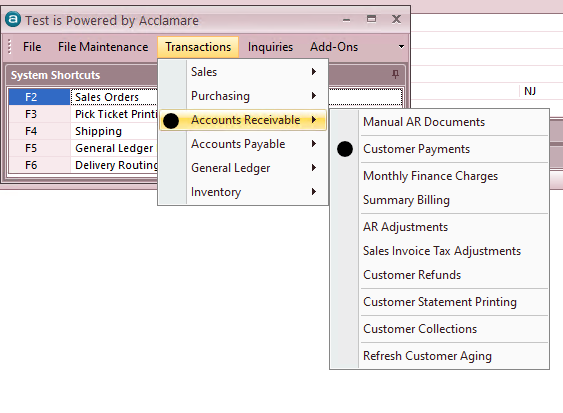
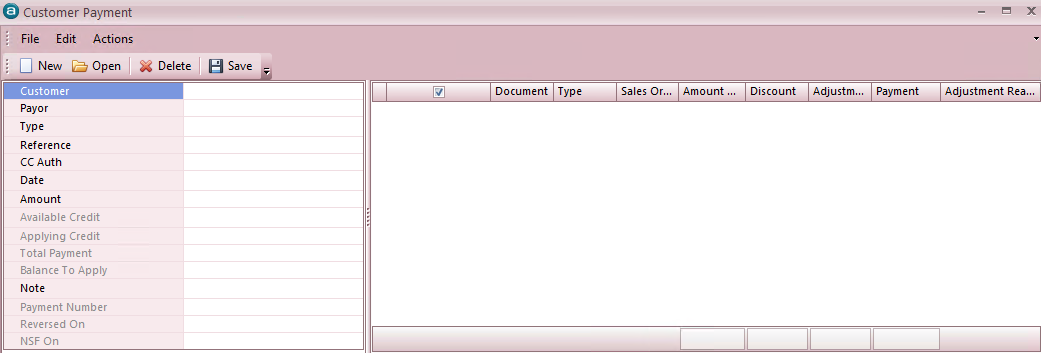
Click on the icon for New Transaction.

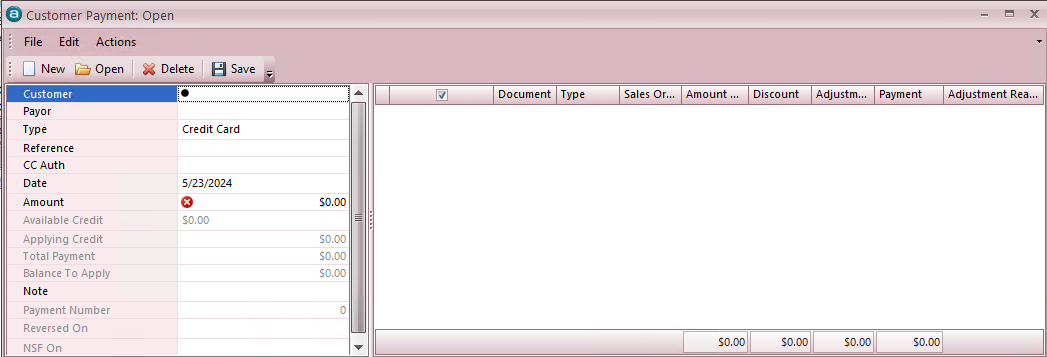
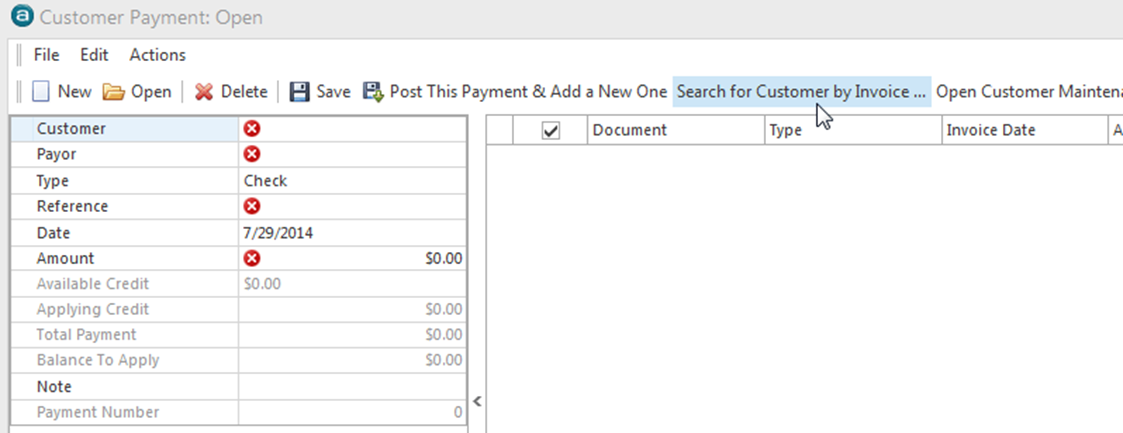
Alternate Search Options: If you have not identified the customer and Sales Order number in previous steps you can look up by clicking on the option Search for Customer by Invoice (shown in screen shot above).
Find Customer by Invoice by entering the invoice number and hitting the Enter key. When the invoice displays, hit enter again and it will bring you back to the Customer Payment screen with all open invoices for the associated Customer displayed OR in the search screen simply highlight the correct customer and hit Enter, which will bring you back to the Customer Payment screen.
If this account is paid from a corporate headquarters enter the PAYOR#, instead of CUSTOMER#, Hit the Enter key and all invoices for the PAYOR will be displayed.
Select TYPE – / Cash / Credit Card / / Credit Application Only.
Check
EFT
Enter REFERENCE – customer’s check number or “EFT- Bank Transaction#”
Enter DATE – current date will default. We use current date – NOT the date on the customer’s check. Change only if unusual circumstance makes it necessary.
Enter AMOUNT – of the payment to be applied
Total amount
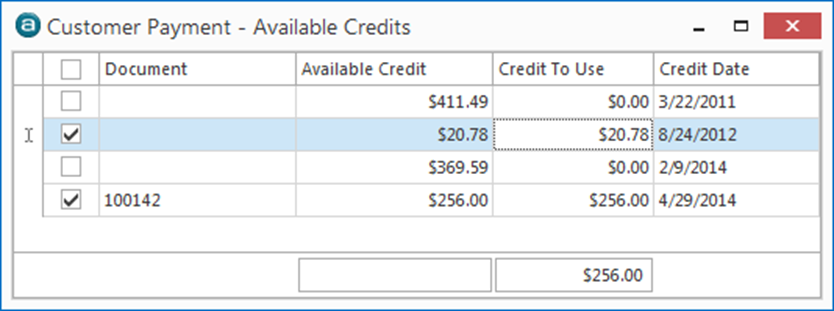
If the payment includes CREDITS TO BE APPLIED and if we have corresponding credits on our records, you will see an amount displayed in the section AVAILABLE CREDIT. This includes previously posted Overpayments. .
The credits must be selected prior to the invoices

SELECT CREDITS TO APPLY to this payment. Click on the icon to display list of credits, then Check box on the line of the credit, or overpayment, that is applicable. Close the credit list box and the running totals for Available Credit and the Balance to Apply will have changed by the amount of credits selected.